See how an image, a question or a spoken phrase becomes a useful result on AiOnIc. Explore the demonstrations below and the kinds of real-world interfaces they could help build.
What would you like to build?
Register and tell us about your work and interests. An administrator can review your request and share more in-depth information, including technical details and selected demonstrations.
Turn a captured image into a short description, displayed beside the source image or read aloud.
Camera or stored-video frame → resize and normalize → vision encoder → trained visual connector → text decoder → caption.
Where it could be useful
Describe rooms, workstations or displays on demand.
Prototype accessible scene summaries.
Review selected images from a recorded inspection.
How to interpret the result
Choose a new model load for each launch or a warm session for repeated captures.
VISION / REPEATED SCENE SUMMARIES
SmolVLM2
Generate scene captions from single images or sampled frames in a continuing capture loop.
Camera or video frame → image preparation → vision features → visual connector → decoder prefill and cached generation → description.
Where it could be useful
Add periodic scene summaries to a local dashboard.
Describe selected moments in recorded video.
Help a reviewer survey indoor scenes or equipment areas.
How to interpret the result
Models remain resident between captures. The loop processes individual frames; it does not establish continuous temporal understanding.
VISION / OBJECT DETECTION
YOLO26 Nano
Locate recognized objects and overlay their bounding boxes, class names and confidence values.
Capture frame → resize and tensor layout → detection network → candidate filtering and box decoding → annotated preview.
Where it could be useful
Show recognized objects in an inspection interface.
Prototype people or object-presence indicators.
Find relevant recorded frames for human review.
How to interpret the result
Higher-resolution and faster smaller-input modes are available. Custom products, defects and counting workflows need matching data and evaluation.
VISION / COARSE GAZE
MobileGaze
Display an estimated gaze direction as an arrow on a detected face.
Capture frame → CPU face detection → crop and resize → gaze model → angles and direction arrow.
Where it could be useful
Explore directional input for a kiosk.
Prototype hands-free menu navigation.
Give users visual feedback during interface experiments.
How to interpret the result
This is coarse image-coordinate direction, not a calibrated screen point or a measure of attention, intent or medical status.
LANGUAGE / ENGLISH CONVERSATION
SmolLM
Ask typed questions and receive generated English replies, with a voice-interface option.
Typed or recognized question → tokenizer and conversation prompt → resident decoder with KV cache → reply text → optional speech.
Where it could be useful
Demonstrate an offline conversational interface.
Prototype language interaction for exhibits or training stations.
Explore a natural-language front end for verified local tools.
How to interpret the result
Text chat and its voice extension use the compact model runtime. Tool connections and application knowledge must be supplied separately.
LANGUAGE / JAPANESE CONVERSATION
LLM-jp
Ask questions in Japanese and receive Japanese text replies, with optional speech input and output.
Japanese text or recognized speech → matching tokenizer and prompt → Japanese decoder → reply text → speech when enabled.
Where it could be useful
Prototype Japanese-language kiosks and device interfaces.
Demonstrate local conversation without a cloud chat request.
Evaluate Japanese prompts and interaction design on an edge device.
How to interpret the result
A small chat model can generate incorrect answers. It is not a verified knowledge base or a live-information service.
SPEECH / JAPANESE VOICE INTERACTION
Whisper Tiny + Japanese chat
Speak a Japanese question, review its recognized text and hear a generated reply.
Browser microphone or Y02 → audio features → Whisper encoder and decoder → Japanese transcript → LLM-jp → speech synthesis and speaker.
Where it could be useful
Explore hands-free Japanese terminal interaction.
Prototype a local voice interface where sending audio to the cloud is undesirable.
Review recognition output before connecting it to an application.
How to interpret the result
Speech recognition uses accelerator kernels alongside Japanese chat. Recognition, answer quality and speech synthesis are separate stages; microphone and speaker support depend on the board.
ROBOTICS / RECORDED POLICY REPLAY
Octo-Small
Display predicted robot actions beside recorded observations, including translation, rotation and gripper values.
Two recorded robot frames → visual stem → transformer with cached task instruction → diffusion action head → four predicted action vectors.
Where it could be useful
Study vision-language-action policy execution at the edge.
Compare numerical policy outputs with original-model results.
Prepare simulation or robot-integration experiments using matching observation and action conventions.
How to interpret the result
The demonstration displays replay predictions only; it does not move a robot. Numerical agreement is separate from successful closed-loop manipulation.
BOUNDARIES AND SHAPE
TEED · live edge detection
Turn USB camera or stored video frames into an edge map. A compact convolutional model extracts fine boundaries, learns to upsample them and fuses the result into a live preview.
Where it can help
Inspect object outlines and surface features.
Support document, contour and image-analysis tools.
Provide boundary cues for robotics and assisted annotation.
Native 320×240 and full 640×480 modes are available. Deployment-specific accuracy must be evaluated with representative images.
POSE AND INTERACTIVE CONTENT
Pose matching · interactive playback
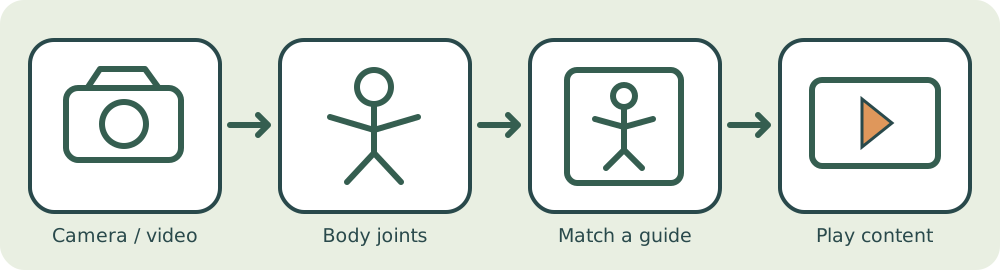
Estimate body joints from a USB camera or stored video. Register guide poses in a gallery, associate clips and trigger browser playback after a steady match. Optional USB/UART messages can trigger a connected physical player.
Where it can help
Interactive displays, museums and movement-controlled exhibits.
Exercise demonstrations and movement-guided games.
Hands-free content selection and creative installations.
Camera-first input includes stored-video fallback for boards without a webcam. Similarity scores are not calibrated probabilities or a medical assessment.
POSE AND INTERACTIVE CONTENT
Face + Pose · interactive control
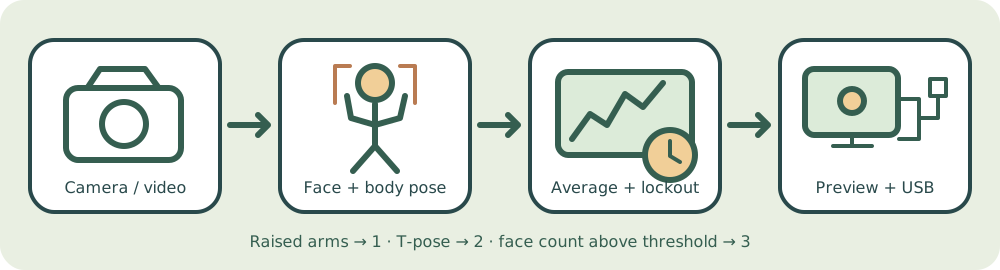
Track the closest visible face and associate its body joints. Raised arms select command 1, a T-pose selects command 2, and an averaged detected-face count above a chosen threshold selects command 3. Adjustable averaging and lockout reduce repeated triggers.
Where it can help
Hands-free interactive displays and museum exhibits.
Movement-controlled signage and content selection.
USB-connected installation and playback prototypes.
Camera-first input includes stored-video fallback. USB serial is optional and disabled by default. Face area estimates proximity; detected-face counts may omit people whose faces are hidden. No age or gender classification is performed.
12 / INTERACTIVE SEGMENTATION
LiteMedSAM Interactive segmentation.
A medical example image becomes a reusable embedding. Select a box to generate and refine a segmentation overlay.
Camera or stored video passes through a vision backbone and attention-based object queries to produce labelled bounding boxes.
Camera / video → image features → object queries → labelled boxes
Where it could be useful
Workspace observation and object-counting prototypes
Retail and inventory analytics prototypes
Robot perception experiments
How to interpret the result
This hybrid demo is slower than real time. The live preview refreshes independently of detections. Original-model detection agreement is reported separately from dataset accuracy.
14 / SCENE SEGMENTATION
DDRNet Road-scene segmentation.
Dual-resolution feature branches combine spatial detail and scene context, producing a road-scene class overlay.
Camera / video → dual-resolution branches → context fusion → class overlay
Where it could be useful
Road-scene prototyping
Mobile robot perception
Scene-understanding interfaces
How to interpret the result
The Cityscapes model targets road scenes. Indoor class predictions may be misleading; preview cadence and processed-frame FPS are separate.
From demonstration to your application
Choose camera or recorded video
Visual demos can capture a live image or sample a stored video. Camera-first mode uses a recording when no camera is detected, so boards without a webcam can still demonstrate supported visual models.
Keep input and result together
The web interface pairs an image with its caption, detections or predicted actions. Authorized users can review results on a computer or phone that can reach the board service.
Prepare for use without internet
Download the required package before going into the field and keep it available offline. Installed models and attached microphones, cameras and speakers vary between boards.
Evaluate the intended environment
These are demonstration capabilities, not completed deployments. Evaluate representative inputs, supported classes, response time and output quality for the application you intend to build.
Explore the technical details
Share your profile and areas of interest when registering. Administrator-approved access can include deeper explanations of the model pipeline, conversion methods and selected board demonstrations.